Try Demo Login
Level 2

Upload chart of accounts from CSV

Prepare a chart-of-accounts CSV with the exact active headers, upload it, then verify the accounts can be used for reconciliation and reporting.

Who can do this
Bookkeeping edit access
Last verified
2026-06-06
Steps
4
Product area
Bookkeeping
Before you start

Prepare these items.

  • Download the blank or example Chart of Accounts CSV.
  • Do not rename headers.
  • Each row has Code, Name, Type, TaxRate, and Description.
Important details

Understand the fields before changing them.

File shape

  • The first row must be exactly: Code, Name, Type, TaxRate, Description.
  • Do not rename TaxRate to Tax Rate, AccountCode, or any legacy spaced header.
  • Use one account per row. Keep Code unique and stable because reports and transaction coding depend on it.
  • Example row: 6100, Dummy Office Supplies, Expense, GST, Dummy office stationery and subscriptions.
Before uploading

  • Check the account type before import; changing account type after transactions are coded can affect report interpretation.
  • Use dummy rows for training and never upload a real client chart into a test company.
  • If the CSV was edited in Excel, confirm it is still comma-separated and did not add blank columns.
Steps

Follow the workflow.

  1. 1

    Download the owned CSV template

    From Help Centre Data templates, download either Blank CSV or Example CSV for Chart of accounts. Use this file instead of any old Google Sheet.

    • The Help Centre template is the source of truth for upload headers.
    • If your file has extra columns, remove them before upload.

    Expected result The CSV opens with Code, Name, Type, TaxRate, Description.

    Download the owned CSV template screenshot Template download
    Click target: Template download
  2. 2

    Fill account rows carefully

    Enter one account per row. Use compact account names, choose the correct Type, and set TaxRate based on how the account should behave during coding.

    • Use dummy examples such as 6100 Dummy Office Supplies.
    • Do not mix asset, liability, income, and expense types in the same row by accident.

    Expected result Every row has a Code and Name and no renamed headers.

    Fill account rows carefully screenshot CSV rows
    Click target: CSV rows
  3. 3

    Open the upload control

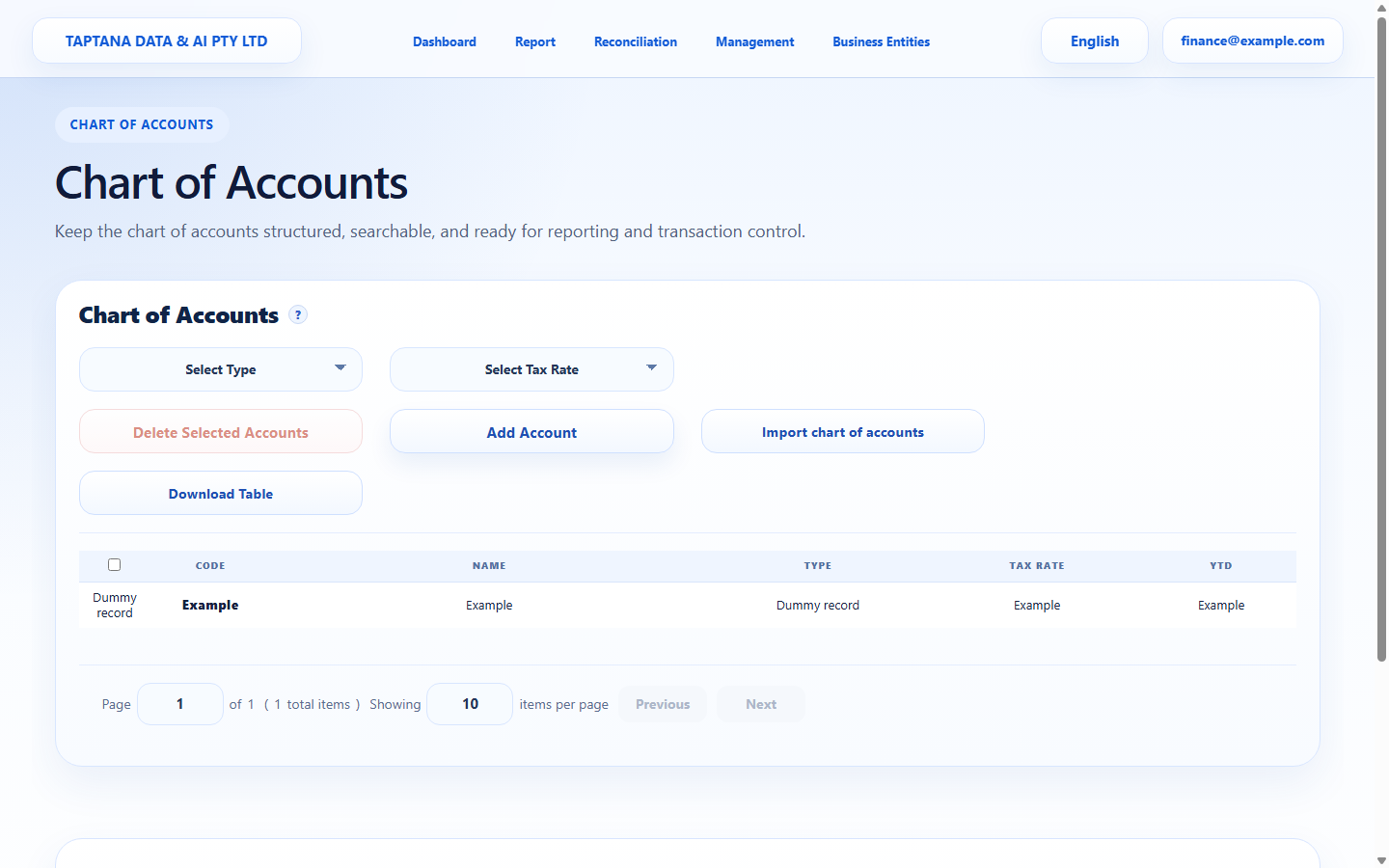
    Open Chart of Accounts and choose Upload Account. Select the CSV and start the upload only after confirming you are in the right company.

    • If the page still shows loading, wait and do not upload until the account area is ready.
    • Upload into the intended company only.

    Expected result The upload action accepts the file and starts processing.

    Open the upload control screenshot Upload Account
    Click target: Upload Account
  4. 4

    Review imported accounts

    After upload, search for several imported codes and confirm the account names, types, and tax rates match the CSV.

    • If one row is wrong, edit the account before coding transactions.
    • If many rows are wrong, fix the CSV and repeat in a safe test company before production.

    Expected result Imported accounts appear and can be selected by downstream workflows.

    Review imported accounts screenshot Imported rows
    Click target: Imported rows
Final checks

Confirm before you finish.

  • No legacy Google Sheet is needed.
  • Headers match the route contract.
  • Uploaded account rows are visible.
If something goes wrong

Recover without losing control.

  • If upload fails, compare the header row with the blank CSV.
  • If one account is wrong, edit it in the account table.
Data upload templates

Chart of accounts

Code, Name, Type, TaxRate, Description
Related scenarios