Level 2
Edit or delete a chart account
Update account details or remove an account that should no longer be available for new coding.
- Who can do this
- Bookkeeping edit access
- Last verified
- 2026-06-06
- Steps
- 4
- Product area
- Bookkeeping
Prepare these items.
- Confirm the account is not needed for current work.
- Know the replacement coding if reports depend on it.
Follow the workflow.
-
1
Find the account
Open Chart of Accounts and use search/filter to locate the account.
Expected result The target account row is visible.
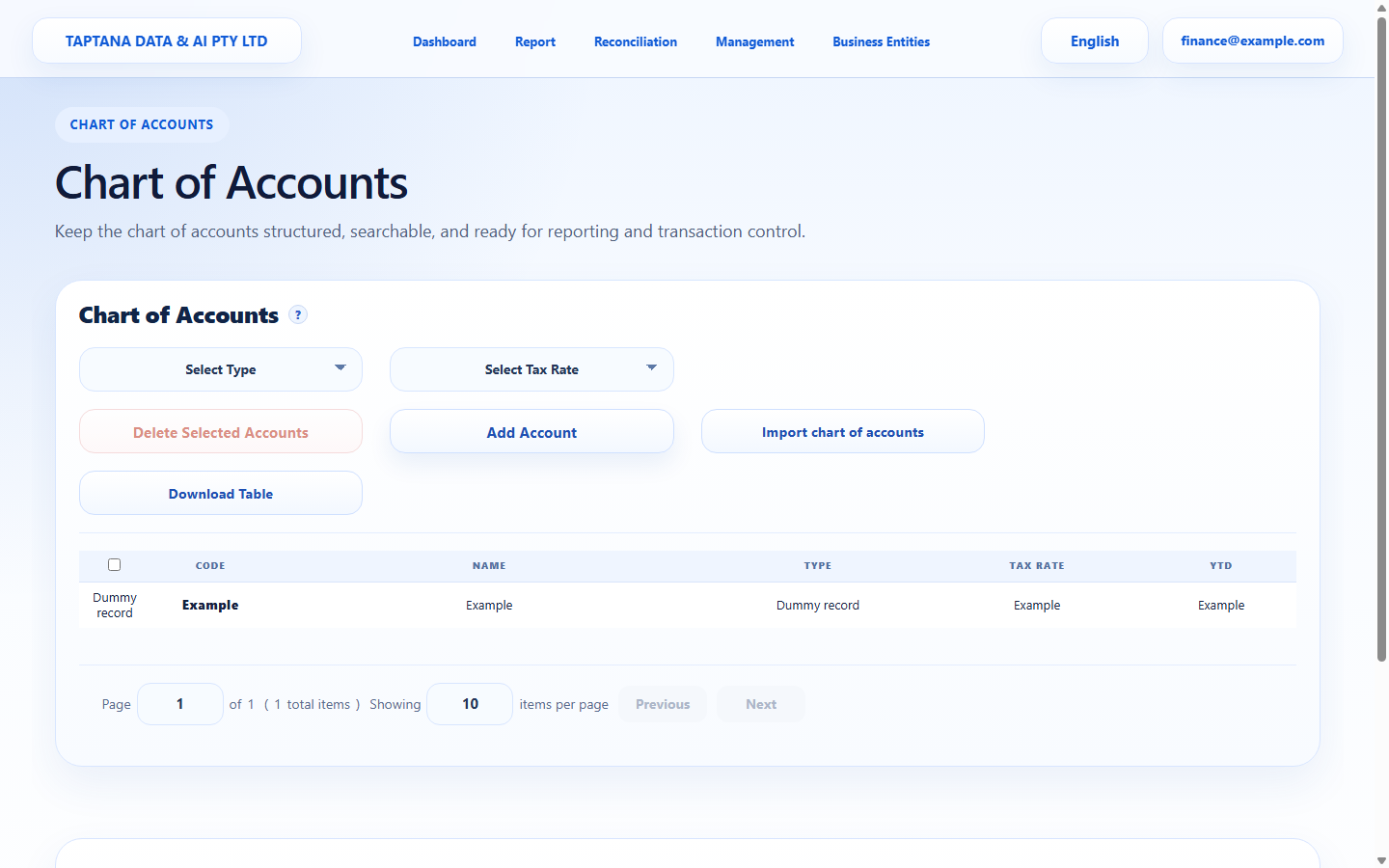 Search account
Click target: Search account -
2
Edit the row
Use the row edit action, update name/type/tax/description, and save.
Expected result The updated row reloads with new values.
Edit row
Click target: Edit row -
3
Delete only when safe
Use Delete only when the account should no longer be available for future coding.
Expected result The row disappears or is no longer active.
Delete row
Click target: Delete row -
4
Review source workflows
Check reconciliation and invoice product defaults if the deleted account was used there.
Expected result No active workflow points to the removed account.
Account usage
Click target: Account usage
Confirm before you finish.
- Updated details are visible.
- Deleted account is not available for new coding.
- Existing reports are understood before removal.
Recover without losing control.
- If delete is blocked, stop using the account and keep it for history.
- If the wrong account was changed, edit it back immediately.