Try Demo Login
Level 2

Upload bank transactions

Prepare unreconciled bank transaction rows with correct debit/credit direction and upload them into the reconciliation queue.

Who can do this
Reconciliation edit access
Last verified
2026-06-06
Steps
4
Product area
Bookkeeping
Before you start

Prepare these items.

  • Chart of accounts is ready.
  • CSV headers are Date, Narrative, BankAccount plus either Amount or DebitAmount/CreditAmount.
  • Use dummy transaction data in walkthroughs.
Important details

Understand the fields before changing them.

File shape

  • The first row must match the template headers: Date, Narrative, BankAccount, Amount, DebitAmount, CreditAmount.
  • Use signed Amount, or use DebitAmount for money out and CreditAmount for money in. Only one amount direction should be populated per row.
  • BankAccount should identify the account the statement belongs to, such as Dummy Operating Account.
  • Example rows: 2026-06-01, Dummy rent payment, 1200.00, 0, Dummy Operating Account; 2026-06-02, Dummy customer receipt, 0, 2200.00, Dummy Operating Account.
Common upload issues

  • Dates must be parseable and consistent. Avoid mixed day/month formats in the same file.
  • Narrative should contain enough detail for matching; do not upload blank narratives unless the bank statement is genuinely blank.
  • Do not upload already reconciled transactions through this path; use the reconciled transaction upload only for classified rows.
Steps

Follow the workflow.

  1. 1

    Download the bank transaction template

    Download Bank transactions from Data templates and keep the header row unchanged.

    • Do not add Account or TaxRate columns here; those belong to reconciled transaction import.
    • Use dummy operational rows for training.

    Expected result The CSV contains Date, Narrative, BankAccount, Amount, DebitAmount, CreditAmount.

    Download the bank transaction template screenshot Bank CSV template
    Click target: Bank CSV template
  2. 2

    Enter transactions using one amount direction

    For each row, fill signed Amount or fill either DebitAmount or CreditAmount. Do not enter both as positive values for the same bank line.

    • Money out: negative Amount or DebitAmount.
    • Money in: positive Amount or CreditAmount.
    • Keep numeric values clean: 1200.00, not A$1,200.00.

    Expected result Each transaction has one clear money direction.

    Enter transactions using one amount direction screenshot Amount columns
    Click target: Amount columns
  3. 3

    Upload into reconciliation

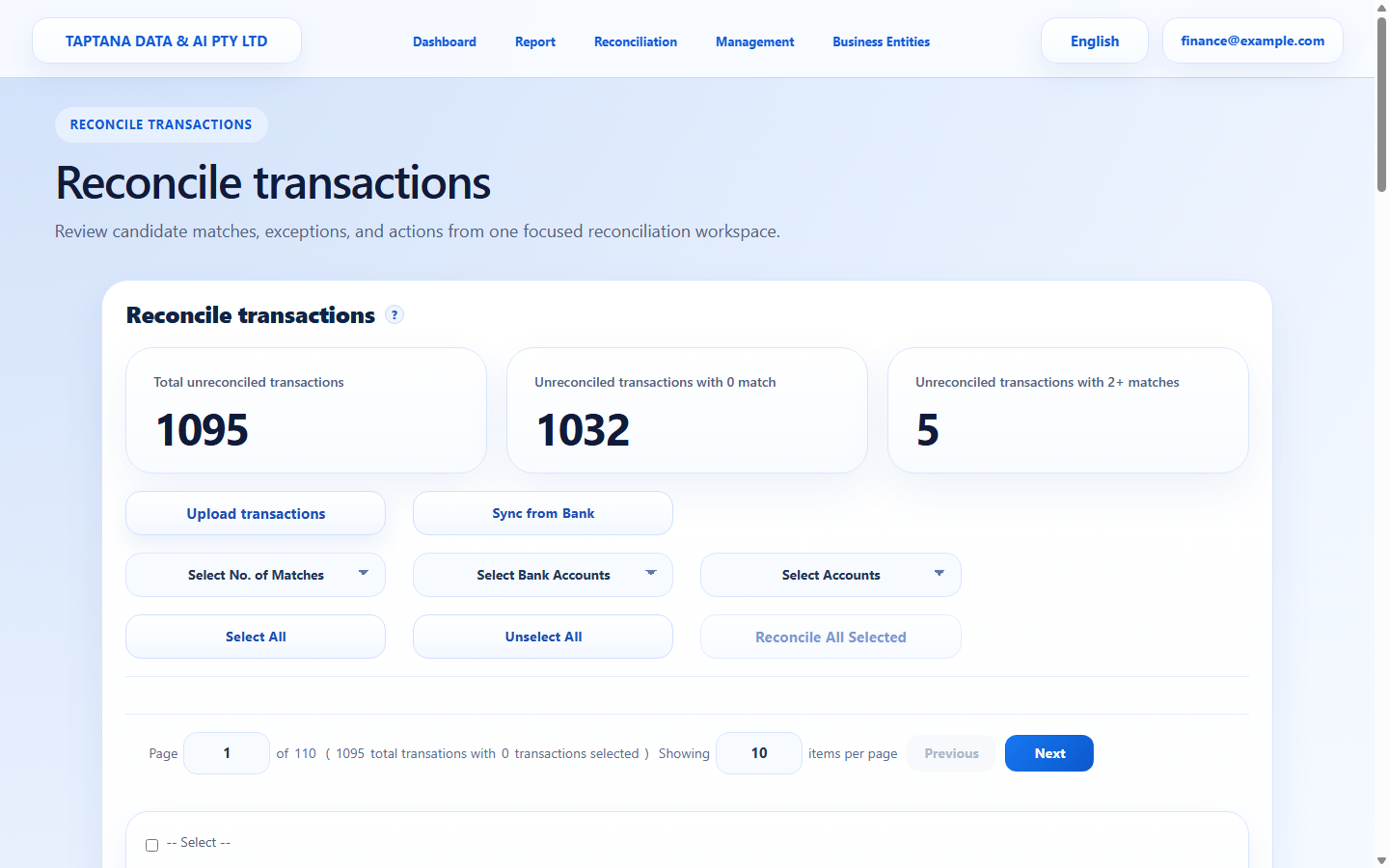
    Open Reconciliation and choose Upload New Transactions. Wait until the reconciliation area is loaded before selecting the CSV.

    • If the page shows Loading or Failed to load, refresh or wait before uploading.
    • Confirm selected company before uploading.

    Expected result The new bank lines enter the reconciliation queue.

    Upload into reconciliation screenshot Upload New Transactions
    Click target: Upload New Transactions
  4. 4

    Check the queue before coding

    Review the uploaded rows before reconciling. Check date, narrative, amount direction, and bank account.

    • Fix obvious upload mistakes before matching accounts.
    • If duplicates appear, stop and investigate before reconciling.

    Expected result Rows are ready for manual or assisted reconciliation.

    Check the queue before coding screenshot Queue review
    Click target: Queue review
Final checks

Confirm before you finish.

  • No loading screenshot is needed; the queue is visible after reload.
  • Debit/credit direction is correct.
  • Duplicate exports are not uploaded twice.
If something goes wrong

Recover without losing control.

  • If rows are missing, check Date is populated.
  • If amounts are reversed, fix the CSV and upload a corrected file.
Data upload templates

Bank transactions

Date, Narrative, BankAccount, Amount, DebitAmount, CreditAmount
Related scenarios