Level 2
Bulk reconcile selected transactions
Use bulk reconciliation only when every selected row has been reviewed and shares the intended treatment.
- Who can do this
- Reconciliation edit access
- Last verified
- 2026-06-06
- Steps
- 4
- Product area
- Bookkeeping
Prepare these items.
- Rows are reviewed.
- Each selected row has correct account/tax treatment.
- No row is selected accidentally.
Follow the workflow.
-
1
Filter the queue
Use filters/search to narrow the queue to the rows you intend to work on.
Expected result Only relevant rows are visible.
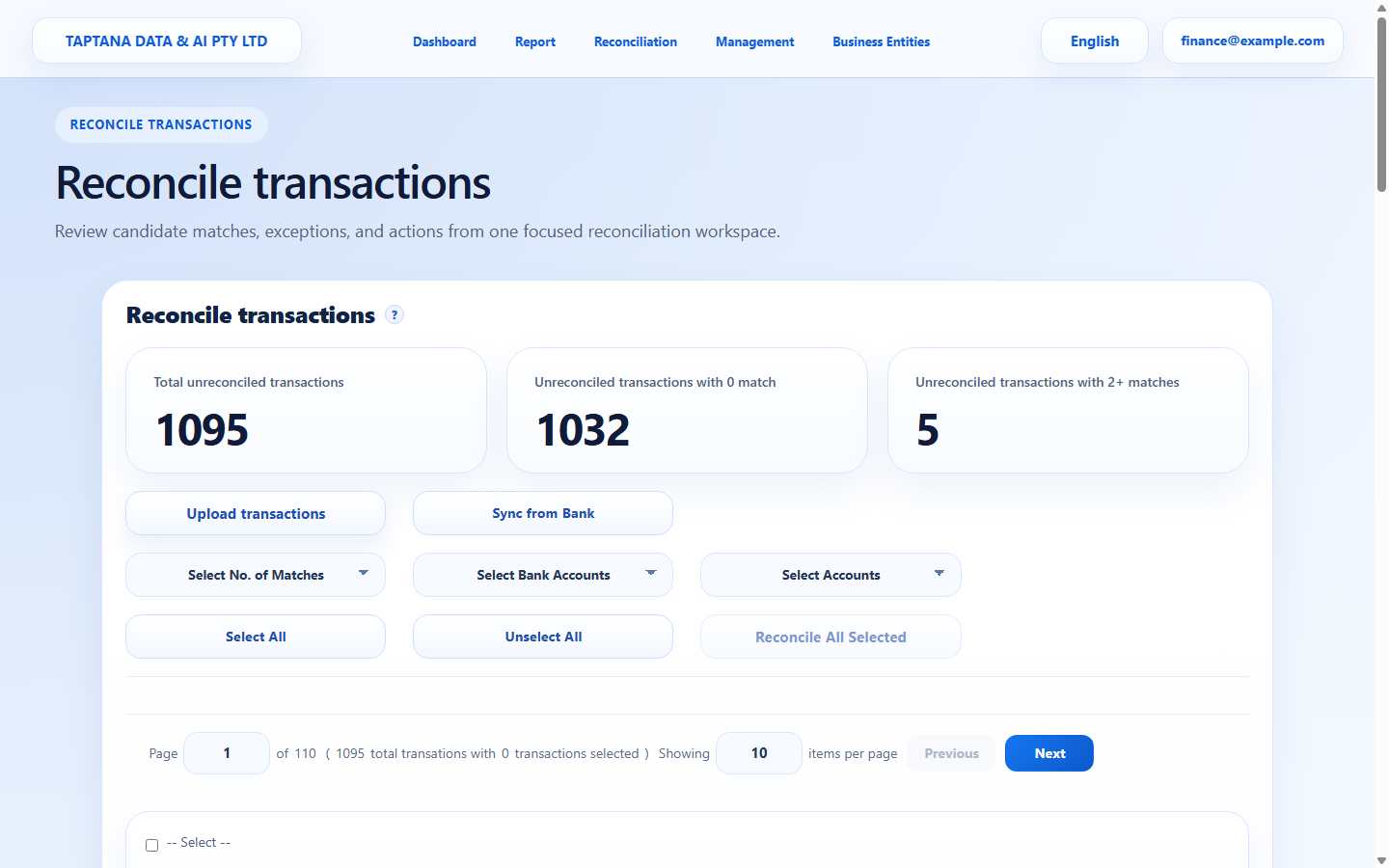 Filters
Click target: Filters -
2
Select rows deliberately
Tick only rows that are ready. Check selected count before proceeding.
Expected result Selected count matches your intended row count.
Select row
Click target: Select row -
3
Review classification
Confirm all selected rows have the correct account, type, and tax rate.
Expected result Each selected row is complete.
Coding fields
Click target: Coding fields -
4
Submit bulk action
Use the bulk reconcile action only after checking the selected count and treatment.
Expected result Selected rows leave the queue.
Bulk action
Click target: Bulk action
Confirm before you finish.
- Every selected row was reviewed.
- No unintended rows were reconciled.
- Ledger totals match expectation.
Recover without losing control.
- If the wrong row was reconciled, find it in Transaction and unreconcile/edit it.
- If bulk action is disabled, complete missing row coding first.