Level 2
Submit a leave request
Create a leave request with correct type, dates, amount, and supporting information.
- Who can do this
- Employee or payroll leave access
- Last verified
- 2026-06-06
- Steps
- 4
- Product area
- Payroll
Prepare these items.
- Employee leave setup exists.
- Leave type and dates are known.
- Use dummy attachment/data in training.
Follow the workflow.
-
1
Open Leave
Open Payroll and go to the leave/request area for the employee.
Expected result Leave balances and request controls are visible.
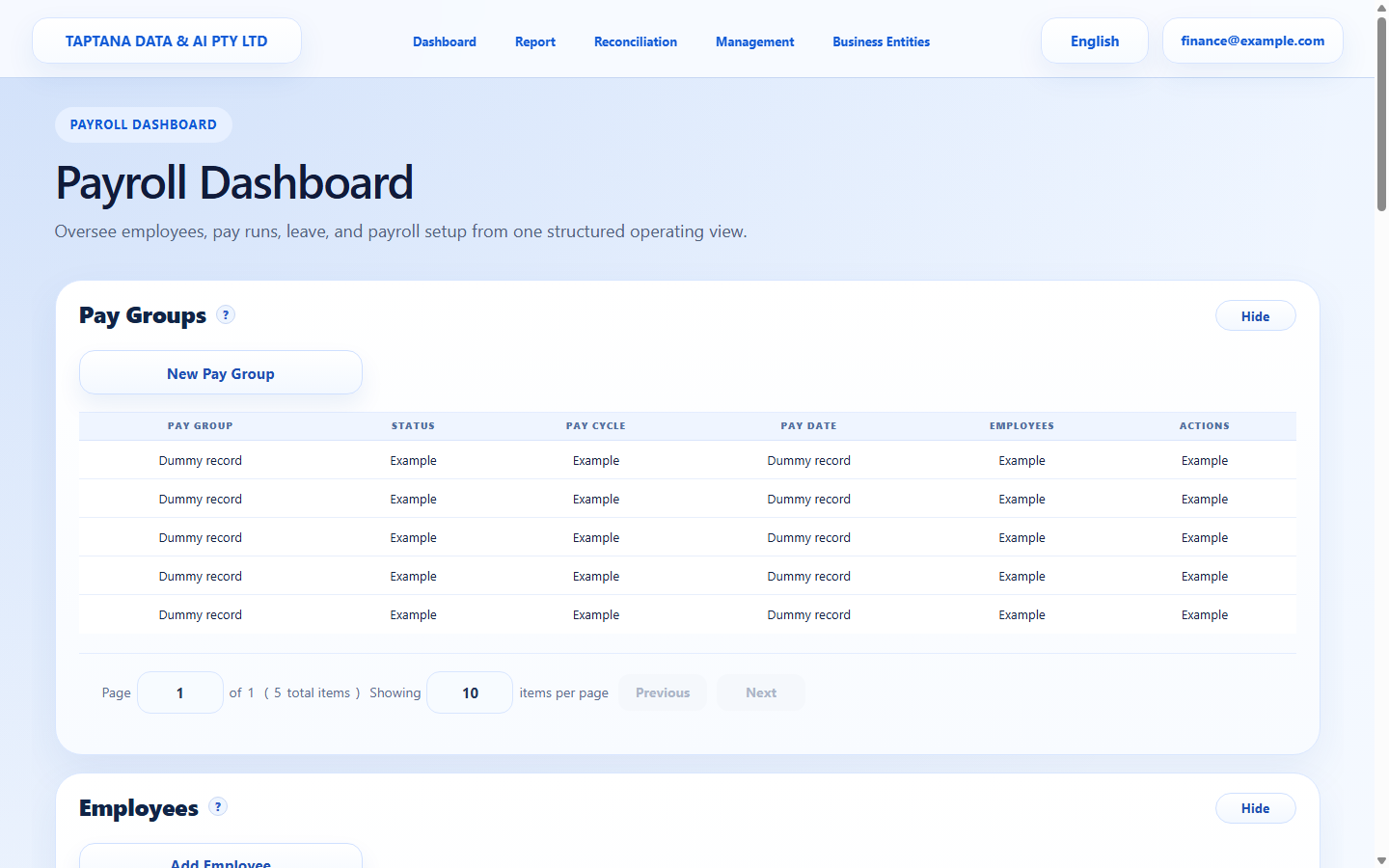 Leave area
Click target: Leave area -
2
Create request
Choose New Leave Request and select leave type, start date, end date, and requested hours/days.
Expected result Request totals are visible.
Request fields
Click target: Request fields -
3
Add reason/evidence
Enter a short reason and attach evidence only if required by company policy.
Expected result Required supporting information is present.
Reason / attachment
Click target: Reason / attachment -
4
Submit
Review dates and amount, then submit the request.
Expected result Request status becomes Submitted or Pending Approval.
Submit request
Click target: Submit request
Confirm before you finish.
- Leave type and dates are correct.
- Request status is visible.
- Balance impact is understood.
Recover without losing control.
- If dates are wrong, cancel or withdraw according to status.
- If approval path is missing, review manager mapping/access.