Try Demo Login
Level 2

Create a pay group

Create a reusable payroll template covering pay cycle, date logic, ordinary hours, leave accrual, super defaults, and recurring pay items.

Who can do this
Payroll edit access
Last verified
2026-06-06
Steps
4
Product area
Payroll
Before you start

Prepare these items.

  • Payroll is enabled.
  • Pay frequency and normal hours are known.
  • Use dummy group names in training.
Important details

Understand the fields before changing them.

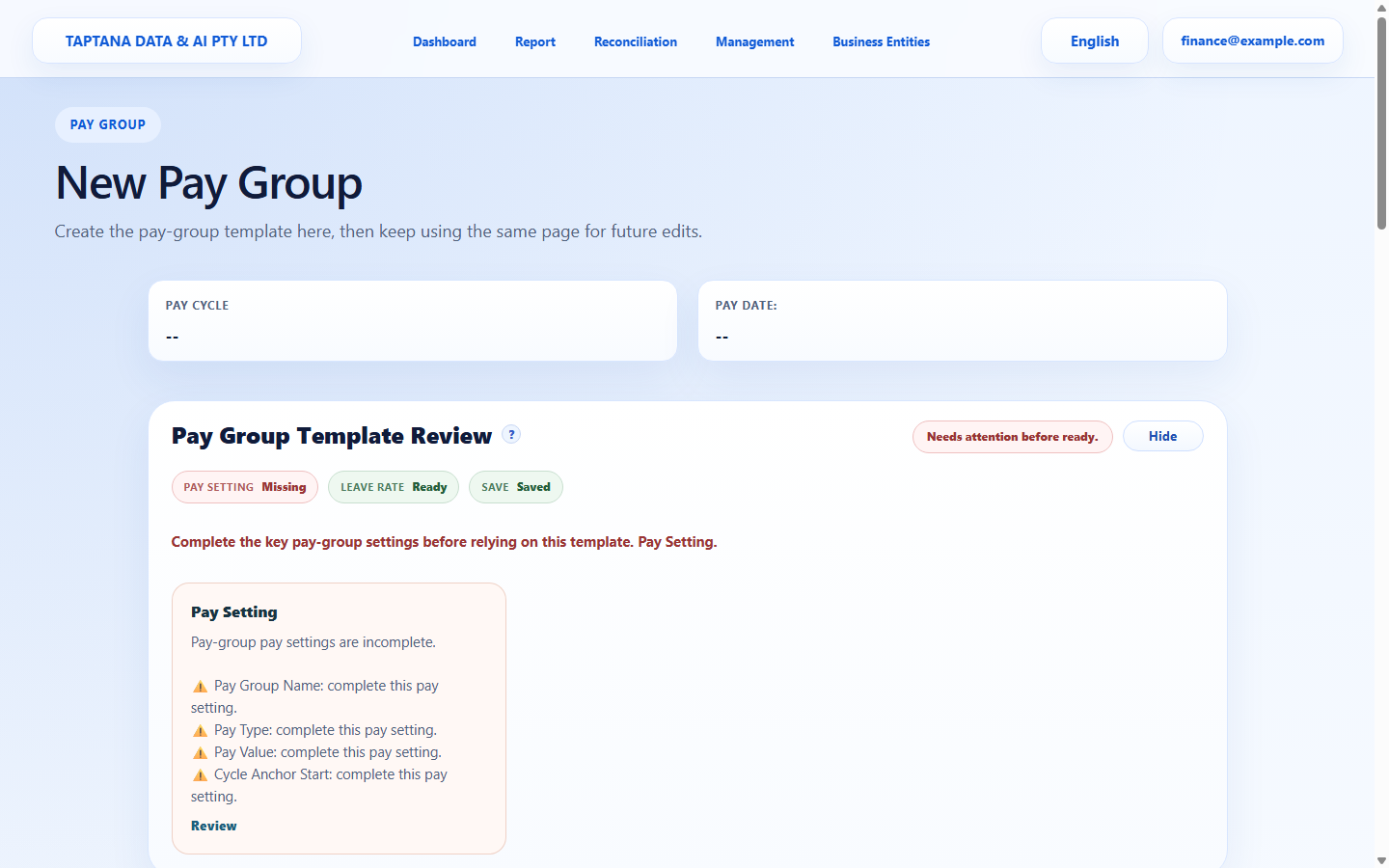
Pay setting

  • Pay Group Name should describe the cycle or employee group, such as Dummy Weekly Wages.
  • Pay Type and Pay Value drive ordinary earnings for assigned employees unless an employee override is enabled.
  • Cycle Anchor Start and Offset Days control pay-period and pay-date calculation; wrong values can shift future payroll cycles.
Hours, leave, and super

  • Working-day rows define ordinary hours. Where row actions are available, right-click to add or remove working-day rows.
  • Leave accrual defaults flow to employees using the pay-group template unless overridden.
  • Super rate should be reviewed before payroll use; changing it later affects future payslip calculations.

Recurring pay items

  • Use recurring pay items only for amounts that should appear regularly for assigned employees.
  • Right-click pay-item rows where supported to add/remove rows; delete a row only when it should not apply to future payslips.
  • Review tax, super, OTE, and STP treatment before relying on a pay item in payroll.
Steps

Follow the workflow.

  1. 1

    Start from Payroll Pay Groups

    Open Payroll, choose Pay Groups, and create a new pay group. Use a name that makes the cycle and employee population obvious.

    • Do not reuse a pay group for employees with different cycle/date logic.
    • Save only after the review card is clean.

    Expected result A new pay group editor opens.

    Start from Payroll Pay Groups screenshot New Pay Group
    Click target: New Pay Group
  2. 2

    Complete pay cycle and date logic

    Fill Pay Type, Pay Value, Pay Cycle, Cycle Anchor Start, and Offset Days. These values drive the default payroll schedule.

    • Anchor date controls the repeating cycle.
    • Offset Days controls when pay date lands relative to the period.

    Expected result Payroll review no longer flags core pay setting as missing.

    Complete pay cycle and date logic screenshot Pay setting
    Click target: Pay setting
  3. 3

    Set ordinary hours and leave

    Enter working-day rows and leave accrual rates. Use right-click row actions where available to add or remove rows, then remove blanks.

    • Blank working-day rows create review noise.
    • Leave rates affect future leave balances and payslip review.

    Expected result Working hours and leave defaults are ready for employees using the group.

    Set ordinary hours and leave screenshot Hours and leave
    Click target: Hours and leave
  4. 4

    Review super and recurring items

    Confirm super rate and recurring pay items. Add only recurring items that should appear on every relevant payslip.

    • Check tax/super/OTE/STP treatment on pay items.
    • Changing a saved group can affect assigned employees' future payslips.

    Expected result Review card is ready or shows only deliberate warnings.

    Review super and recurring items screenshot Super and pay items
    Click target: Super and pay items
Final checks

Confirm before you finish.

  • Pay settings are complete.
  • Leave and super defaults are appropriate.
  • Group can be assigned to employees.
If something goes wrong

Recover without losing control.

  • If review says missing, click Review and complete the named field.
  • If Save is blocked, complete every required pay setting first.
Related scenarios