Try Demo Login
Level 2

Edit or delete a pay group

Edit pay-group defaults carefully, because assigned employees and future payslips can inherit the changed pay, leave, super, hours, and pay-item settings.

Who can do this
Payroll edit access
Last verified
2026-06-06
Steps
4
Product area
Payroll
Before you start

Prepare these items.

  • Know why the default is changing.
  • Check assigned employees.
  • Understand future payroll impact.
Important details

Understand the fields before changing them.

Before editing

  • Check which employees are assigned to the group before changing defaults.
  • A change to pay cycle, date offset, ordinary hours, leave rate, super, or recurring pay items can affect future payslip creation.
  • If only one employee needs a different value, use employee override/custom setup instead of changing the shared group.
Delete rules

  • Deletion should be blocked or avoided when employees are still assigned.
  • Reassign employees before deleting a pay group.
  • If the group was used historically, prefer leaving it inactive/not used rather than removing context needed for review.
Steps

Follow the workflow.

  1. 1

    Find the group

    Open Pay Groups and choose the group to update.

    Expected result The selected group opens.

    Find the group screenshot Pay group list
    Click target: Pay group list
  2. 2

    Review assigned settings

    Check pay cycle, pay date, leave, super, and recurring pay items before editing.

    Expected result You understand what will change.

    Review assigned settings screenshot Existing settings
    Click target: Existing settings
  3. 3

    Edit and save

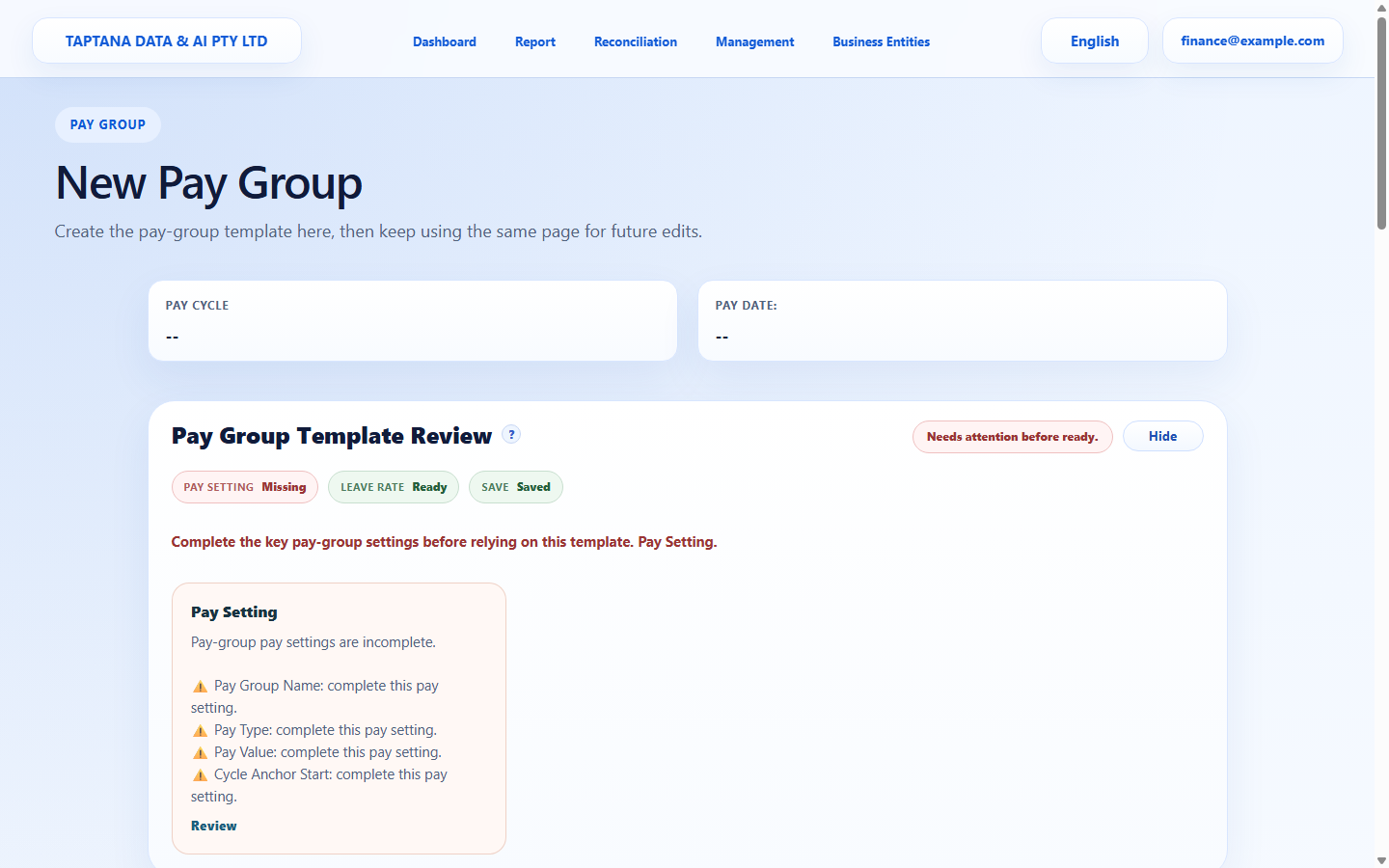
    Update the required settings and save. Review warning cards before relying on the group.

    Expected result Status shows Saved and review cards are clear or understood.

    Edit and save screenshot Save changes
    Click target: Save changes
  4. 4

    Delete only when unused

    Delete only if the group should no longer be available and no current employee depends on it.

    Expected result The group is removed or disabled for future use.

    Delete only when unused screenshot Delete
    Click target: Delete
Final checks

Confirm before you finish.

  • Future payroll uses intended defaults.
  • Assigned employees are reviewed after changes.
  • Deletion is not used for active groups.
If something goes wrong

Recover without losing control.

  • If an employee was affected unexpectedly, edit the employee/pay group assignment.
  • If delete is blocked, stop using the group for new employees.
Related scenarios