Level 2
Approve or decline leave
Review a submitted leave request and decide based on dates, balance, evidence, and operational context.
- Who can do this
- Authorised leave approver
- Last verified
- 2026-06-06
- Steps
- 4
- Product area
- Payroll
Prepare these items.
- Request is submitted.
- Approver has permission.
- Any required evidence is available.
Follow the workflow.
-
1
Open leave management
Open Payroll leave management and find the submitted request.
Expected result The request row is visible.
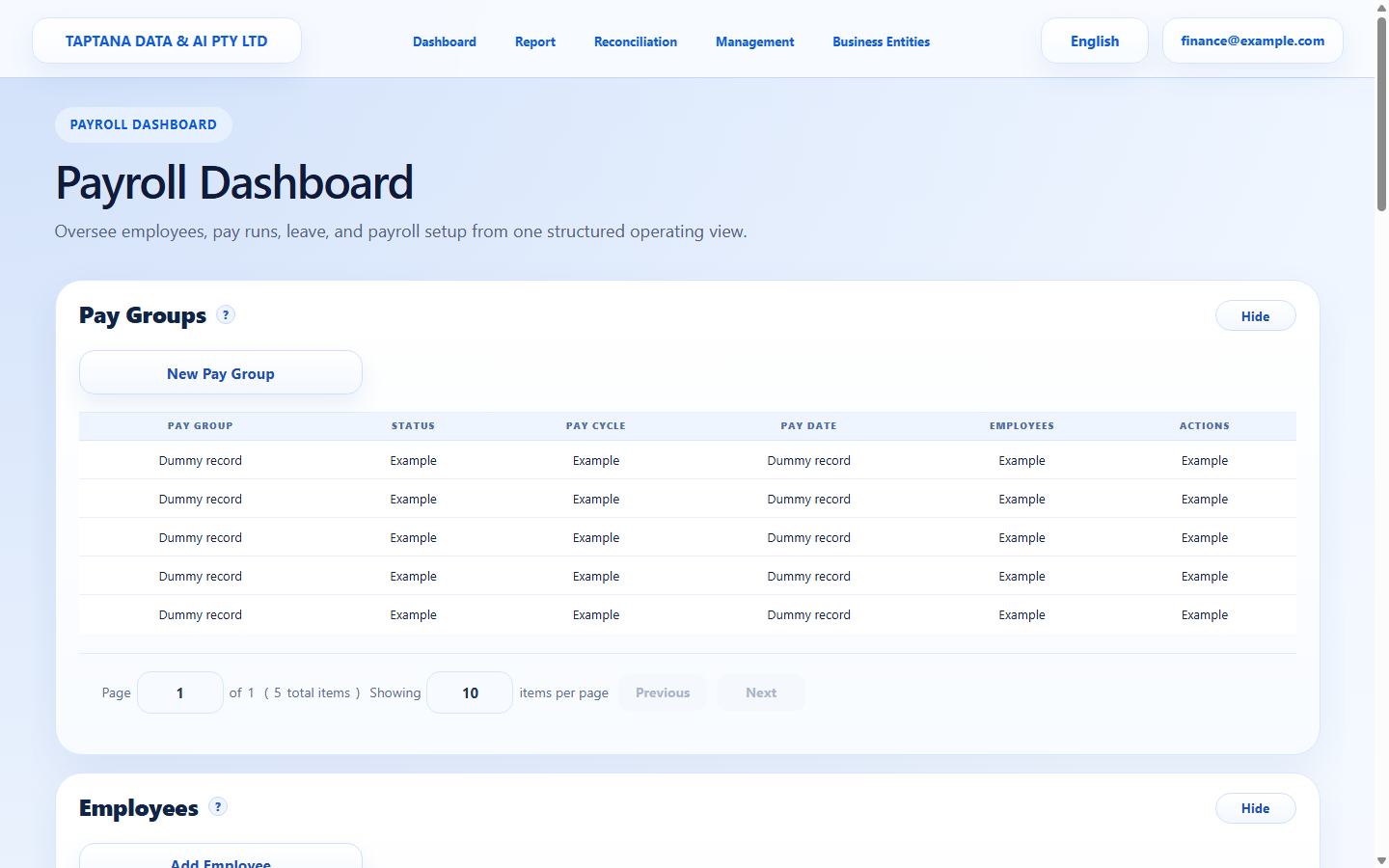 Submitted request
Click target: Submitted request -
2
Review request detail
Check employee, leave type, dates, amount, balance, reason, and attachment.
Expected result You have enough context to decide.
Request detail
Click target: Request detail -
3
Approve
Click Approve when the request is valid and should affect payroll/leave balances.
Expected result Status changes to Approved.
Approve
Click target: Approve -
4
Decline
Click Decline only when the request should not proceed; enter a clear reason if prompted.
Expected result Status changes to Declined with a visible audit trail.
Decline
Click target: Decline
Confirm before you finish.
- Decision status is visible.
- Approved leave can flow into payroll review.
- Declined leave does not affect payslip as approved leave.
Recover without losing control.
- If the wrong decision was made, use the current status actions to withdraw/correct.
- If no approval button appears, confirm approver permission.