Level 2
Update invoice payment status
Record payment outcome after customer payment, partial payment, overpayment, or manual follow-up.
- Who can do this
- Invoice edit access
- Last verified
- 2026-06-06
- Steps
- 4
- Product area
- Invoicing
Prepare these items.
- The invoice exists.
- You have payment evidence.
- Payment amount and date are known.
Follow the workflow.
-
1
Find invoice
Open Invoice Summary and search by invoice number, customer, amount, or status.
Expected result The target invoice row is visible.
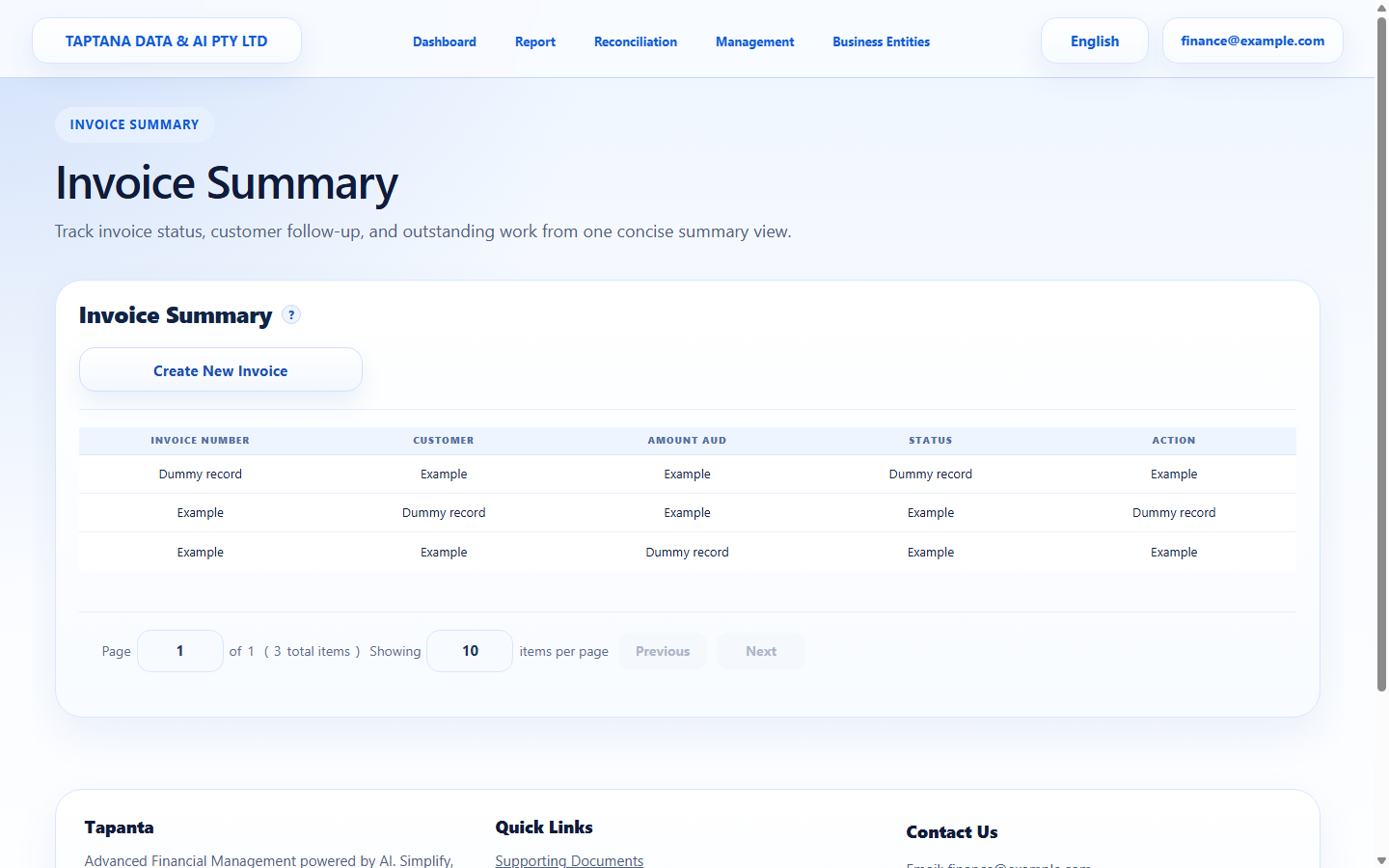 Search invoice
Click target: Search invoice -
2
Open payment control
Use the payment status or response control for that invoice.
Expected result Payment status options appear.
Payment status
Click target: Payment status -
3
Choose status
Select paid, partial payment, overpayment, or another supported status based on evidence.
Expected result Status selection matches payment evidence.
Status fields
Click target: Status fields -
4
Save and review
Save and confirm Invoice Summary displays the updated status.
Expected result The invoice row shows the new payment status.
Save status
Click target: Save status
Confirm before you finish.
- Payment status matches evidence.
- Partial or overpayment notes are clear.
- Invoice Summary is updated.
Recover without losing control.
- If status is wrong, reopen the payment control and correct it.
- If payment should reconcile to bank activity, review reconciliation after bank upload.