Try Demo Login
Level 2

Create and save an invoice draft

Create an invoice draft with correct customer, dates, line rows, GST treatment, account coding, and save state before approval.

Who can do this
Invoice edit access
Last verified
2026-06-06
Steps
4
Product area
Invoicing
Before you start

Prepare these items.

  • Customer exists.
  • Products/services are ready.
  • Invoice date and due date are known.
Important details

Understand the fields before changing them.

Invoice header

  • Customer controls recipient details and email destination. Fix the customer record before sending invoices.
  • Invoice date and due date drive customer follow-up and ageing. Confirm both before approval.
  • Draft invoices are still editable; approved or sent invoices may require a correction workflow instead of direct edits.
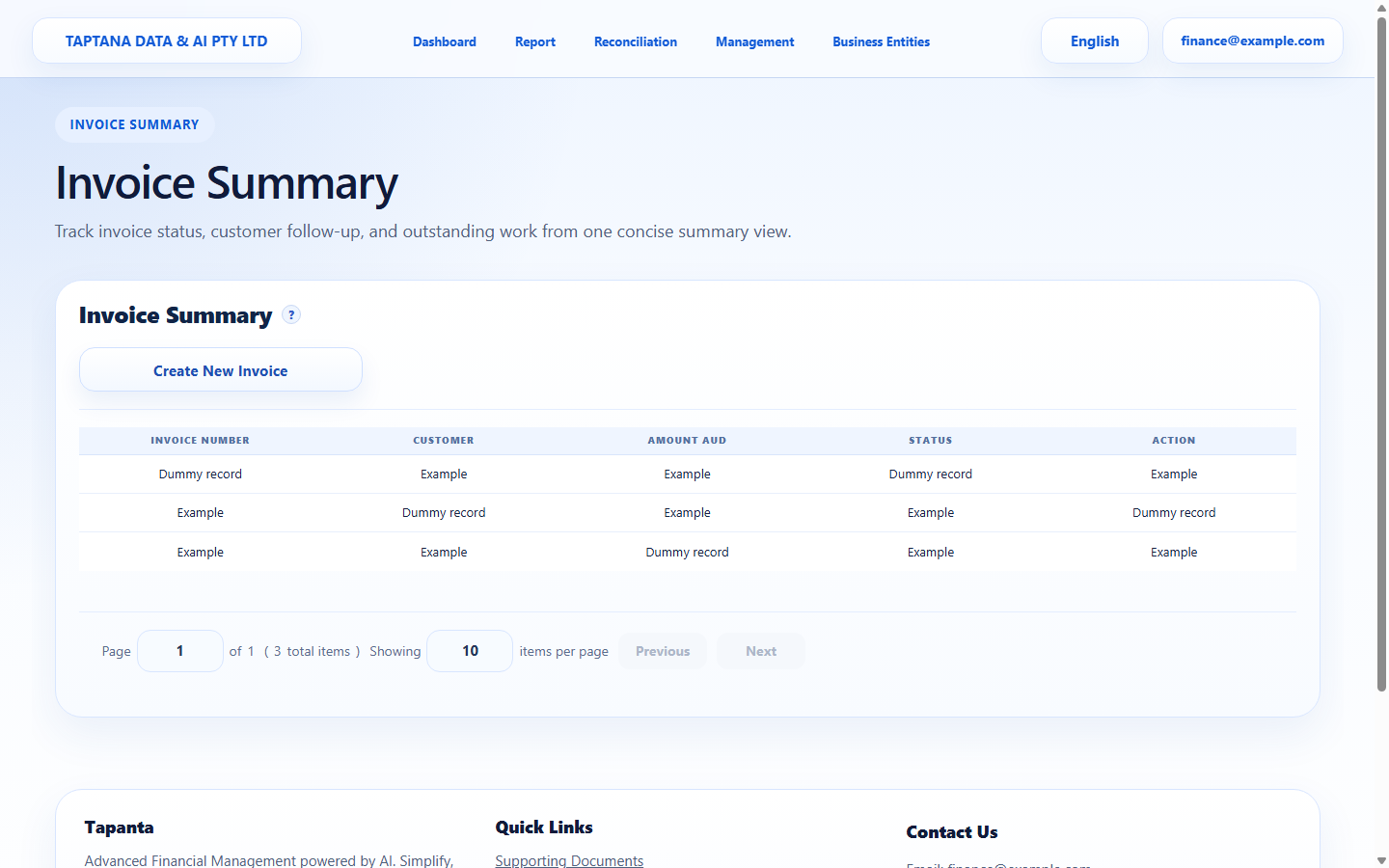
Line rows

  • Use product-backed rows when the item is reusable and should keep consistent description, unit price, tax, and account defaults.
  • Use ad hoc row details only for one-off charges, and still check GST/account coding before saving.
  • Where the table supports row actions, right-click the line area to add or remove a row. Remove empty rows before approval so totals stay clear.
Steps

Follow the workflow.

  1. 1

    Open a new invoice

    Open Invoicing and start a new invoice. Confirm the selected company before creating customer-facing records.

    • Do not start from an old invoice unless you intend to copy its values.
    • Use dummy customers in training.

    Expected result A draft invoice form opens.

    Open a new invoice screenshot New invoice
    Click target: New invoice
  2. 2

    Select customer and dates

    Choose the customer, invoice date, and due date. If the customer address or email is wrong, fix the customer before sending.

    • Due date affects follow-up and outstanding reports.
    • Email send uses customer/contact details.

    Expected result Recipient and due-date fields are complete.

    Select customer and dates screenshot Customer and dates
    Click target: Customer and dates
  3. 3

    Add and maintain line rows

    Add product-backed or ad hoc lines. Use right-click row actions where available to add/remove rows, then confirm quantity, unit price, GST, account, and line total.

    • Remove blank rows before approval.
    • Check GST treatment before saving because it affects reports.
    • If a product default is wrong, update the product before reusing it.

    Expected result Every line has a clear description, amount, tax/account treatment, and no blank extra rows.

    Add and maintain line rows screenshot Invoice lines
    Click target: Invoice lines
  4. 4

    Save the draft and review totals

    Save as draft, then review subtotal, GST, total, and customer-facing wording before approval.

    • Do not approve until customer, dates, rows, GST, and totals are all correct.
    • If a warning appears, fix the source field instead of ignoring it.

    Expected result Invoice remains editable as a draft and totals match the entered lines.

    Save the draft and review totals screenshot Save draft
    Click target: Save draft
Final checks

Confirm before you finish.

  • Draft status is visible.
  • Customer and line totals are correct.
  • No customer email is sent.
If something goes wrong

Recover without losing control.

  • If totals are wrong, edit line quantity/price/tax.
  • If customer is wrong, change it before approval.
Related scenarios