Try Demo Login
Level 2

Add, edit, or delete an employee pay item

Maintain employee-specific pay items, including row add/remove behaviour, tax/super/OTE/STP treatment, and future payslip impact.

Who can do this
Payroll edit access
Last verified
2026-06-06
Steps
4
Product area
Payroll
Before you start

Prepare these items.

  • Employee exists.
  • Pay item type and amount are known.
  • Know whether the item is recurring or one-off.
Important details

Understand the fields before changing them.

Row actions

  • Where the pay-item table supports contextual actions, right-click a row or row area to add/remove pay-item rows.
  • Remove blank rows before saving so review warnings stay meaningful.
  • Delete or disable an item only when it should not apply to future payslips.
Treatment fields

  • Taxable, HelpRelevant, Superable, OTE, STP category, amount/rate, and recurrence determine how the line calculates and reports.
  • Allowances, deductions, reimbursements, leave, and salary sacrifice have different payroll effects. Do not reuse a pay item type just because the amount looks similar.
  • If a saved draft payslip already used the wrong item, correct setup and recreate/recalculate the affected draft before approval.
Steps

Follow the workflow.

  1. 1

    Open employee pay-item area

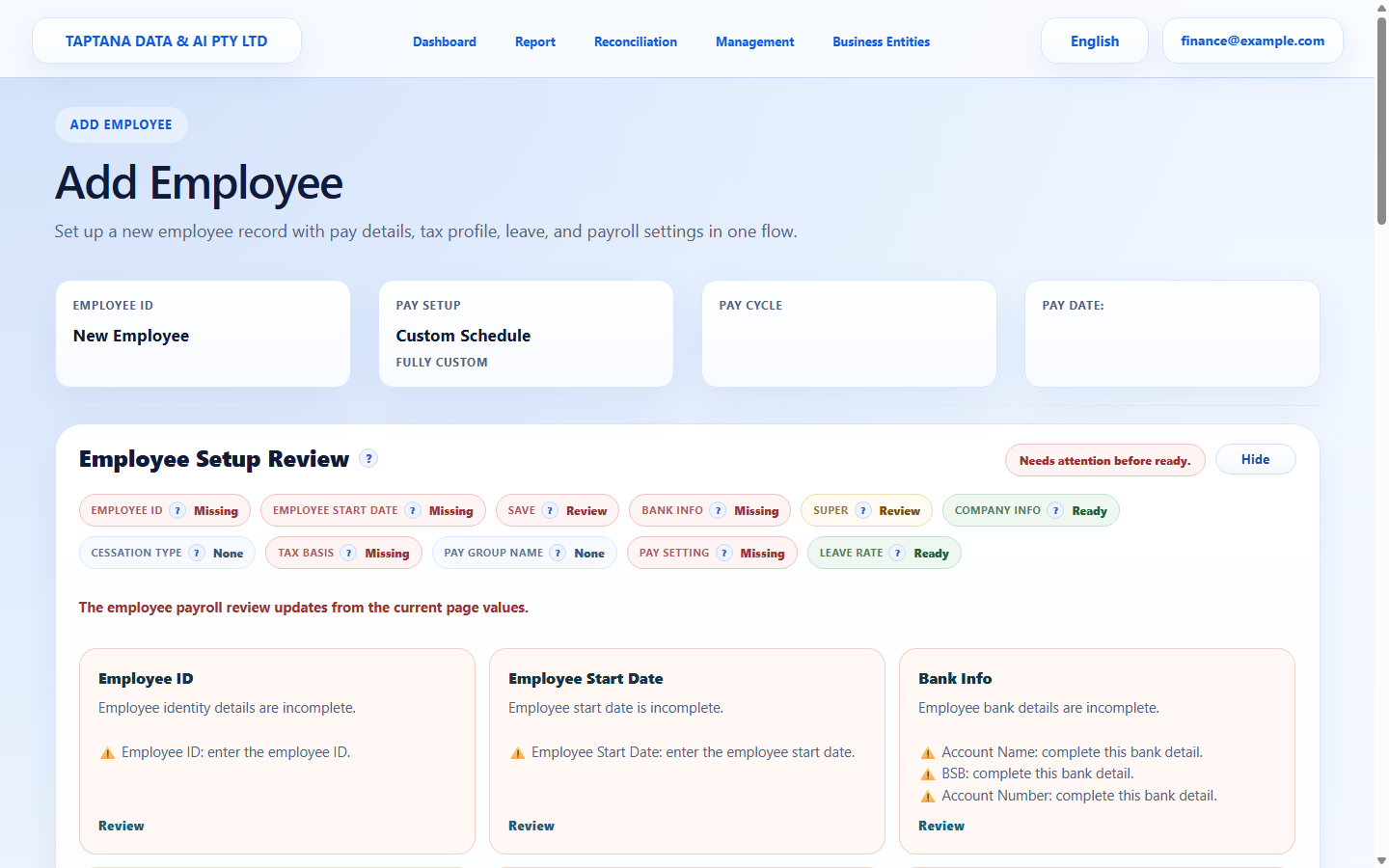
    Open the employee record and go to the pay setup or pay items section. Confirm whether the employee inherits from a pay group, overrides selected fields, or uses fully custom setup.

    • Do not add an employee-specific item if the shared pay group should own it.
    • Check active override flags.

    Expected result The active pay-item source is clear before editing.

    Open employee pay-item area screenshot Pay items
    Click target: Pay items
  2. 2

    Add a row with the right type

    Use Add Pay Item or right-click row actions where available. Choose the correct pay item type, label, amount/rate, recurrence, and treatment fields.

    • Check Taxable, Superable, OTE, and STP category before saving.
    • Remove blank rows.

    Expected result The new row shows the intended payroll treatment.

    Add a row with the right type screenshot Add pay item
    Click target: Add pay item
  3. 3

    Edit an existing item

    Use the row edit action for amount, rate, label, or treatment changes. Understand whether the change affects future payslips only or also an open draft.

    • If a draft already exists, recalculate/recreate before approving.
    • Do not edit a historical meaning just to fix one pay period.

    Expected result The row reloads with updated values and no review warning caused by the edit.

    Edit an existing item screenshot Edit item
    Click target: Edit item
  4. 4

    Delete or disable safely

    Delete or disable only if the item should not be used on future payslips. Confirm it is not required by the employee's pay setup.

    • If deletion is blocked, leave it inactive/not used.
    • Review the next payslip preview after removal.

    Expected result Future payslips no longer include the item.

    Delete or disable safely screenshot Delete item
    Click target: Delete item
Final checks

Confirm before you finish.

  • Pay item appears only where intended.
  • Tax/super treatment is correct.
  • Future payslips reflect the setup.
If something goes wrong

Recover without losing control.

  • If a payslip already used the wrong item, correct the setup and recreate/recalculate the affected draft.
  • If deletion is blocked, disable for future use.
Related scenarios