Level 2
Email or delete a payslip
Email payslips only to the correct recipient and delete only draft/incorrect records where allowed.
- Who can do this
- Payroll edit access
- Last verified
- 2026-06-06
- Steps
- 4
- Product area
- Payroll
Prepare these items.
- Payslip exists.
- Recipient email is correct if emailing.
- Deletion rules are understood.
Follow the workflow.
-
1
Open payslip record
Open the payslip from Payroll for the employee/cycle.
Expected result Payslip record is visible.
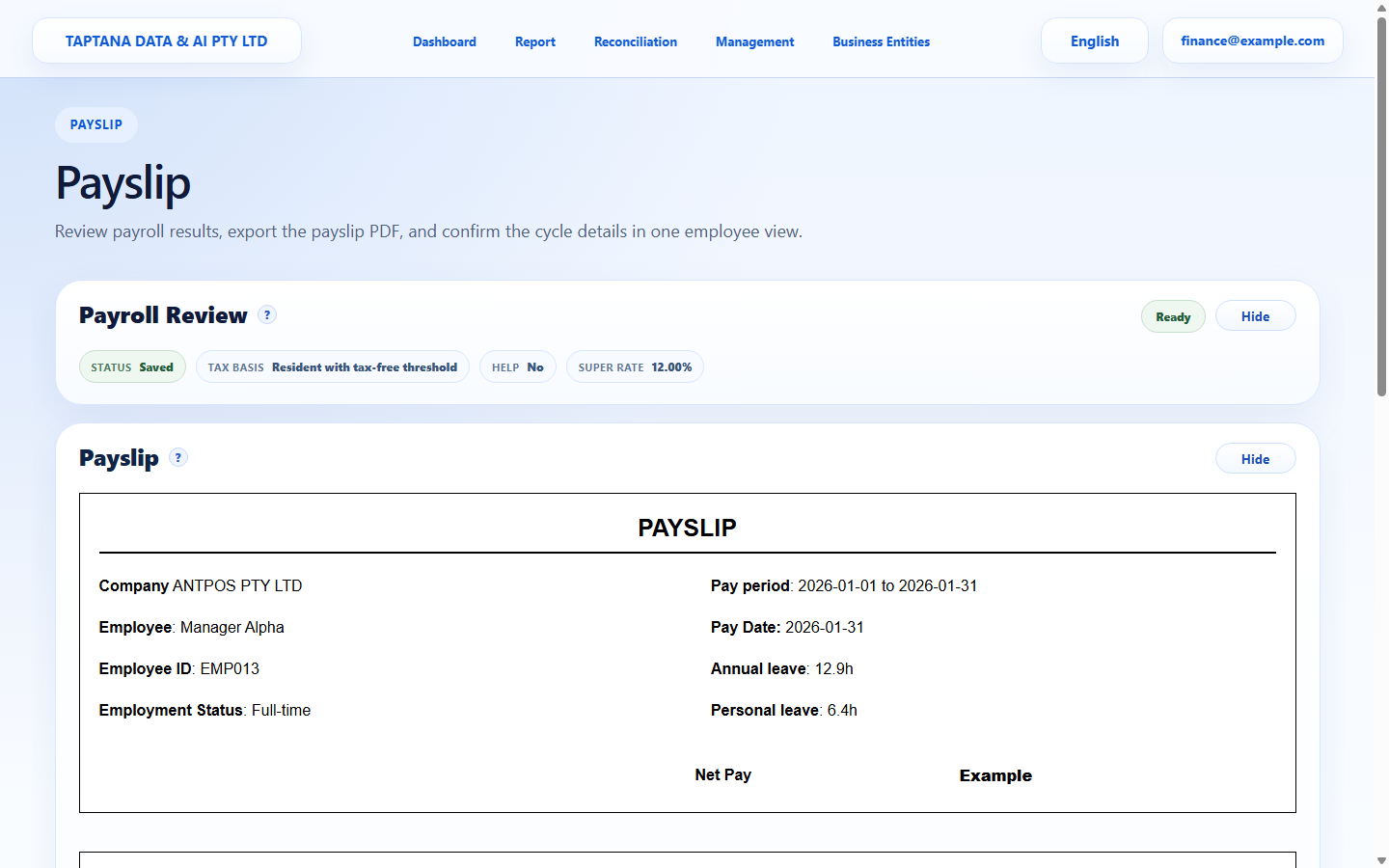 Payslip record
Click target: Payslip record -
2
Email with care
Use Email only after confirming the employee email and final content. Training should use dummy recipients only.
Expected result Email action is deliberate.
Email
Click target: Email -
3
Delete draft if allowed
Use Delete for incorrect draft records only when the UI allows it.
Expected result Incorrect draft is removed.
Delete
Click target: Delete -
4
Confirm status
Return to Payroll and confirm the record is sent, deleted, or still present as expected.
Expected result The list reflects the action.
Payslip status
Click target: Payslip status
Confirm before you finish.
- Emails are sent only to correct dummy/safe recipients in training.
- Deleted records are only those allowed by status.
- Status is verified after action.
Recover without losing control.
- If email recipient is wrong, update employee details before sending.
- If delete is unavailable, use the correction workflow.