Try Demo Login
Level 2

Create and save a payslip draft

Create a payslip draft, maintain line rows, review tax/super/leave/YTD values, and save without approval side effects.

Who can do this
Payroll edit access
Last verified
2026-06-06
Steps
4
Product area
Payroll
Before you start

Prepare these items.

  • Employee setup is complete.
  • Pay group setup is saved.
  • Pay period and pay date are known.
Important details

Understand the fields before changing them.

Draft vs approval

  • Save keeps the payslip as a draft/saved record and should not create STP/bookkeeping approval effects.
  • Approve is the high-impact action. Only approve after gross, tax, super, leave, deductions, reimbursements, net pay, and YTD are reviewed.
  • Approved payslips should be corrected through the correction/update path rather than casual direct editing.
Line-row review

  • Use right-click row actions where supported to add or remove earnings, allowance, deduction, reimbursement, or leave rows.
  • Remove blank rows and resolve review-card warnings before saving.
  • Check tax, super, OTE, and STP treatment for each non-standard row.
Steps

Follow the workflow.

  1. 1

    Open the payslip creator

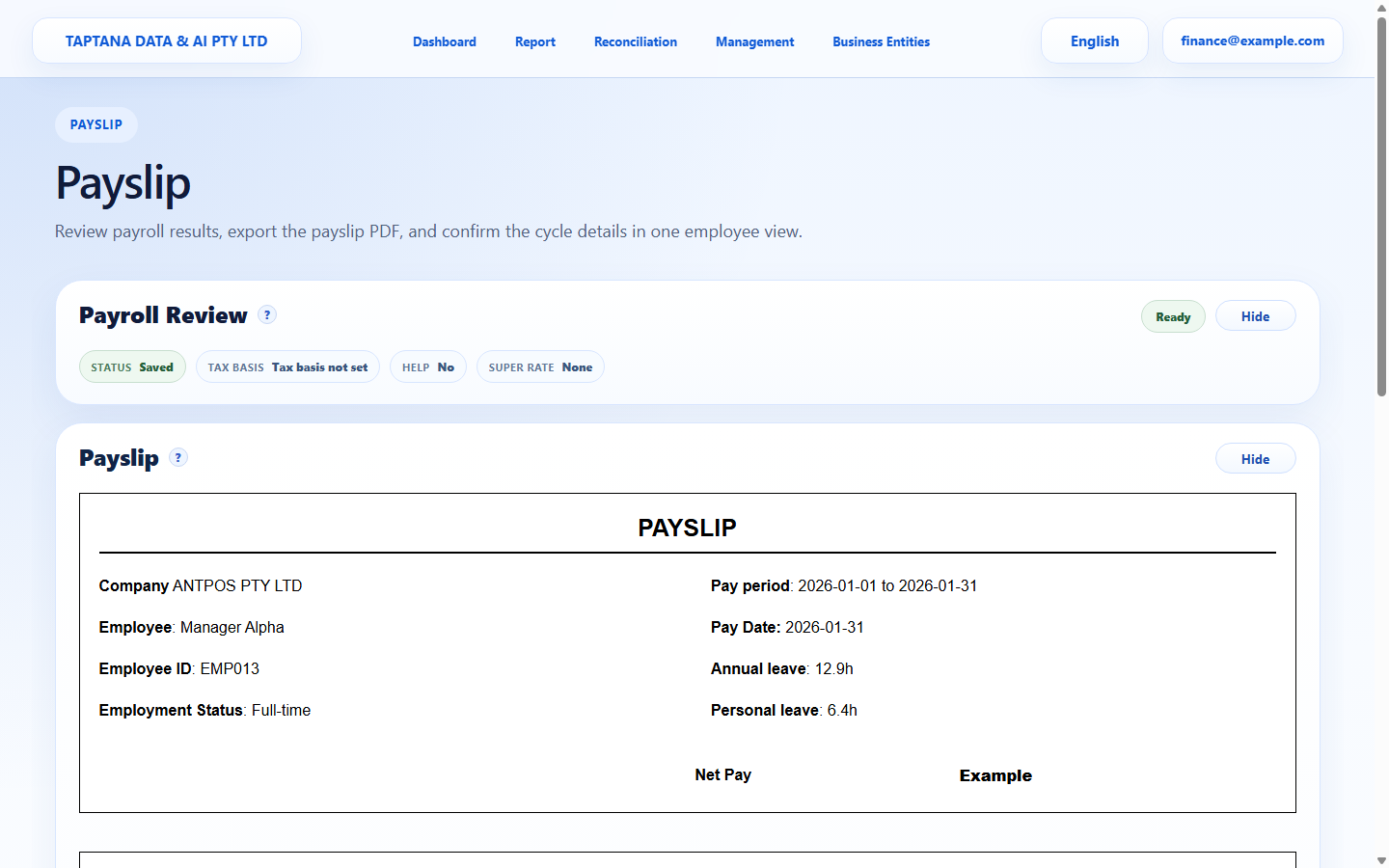
    Open Payroll, choose the employee and pay cycle, then start a new payslip. Confirm pay period and pay date before entering or recalculating lines.

    • Do not create a new payslip if another draft for the same cycle is still open.
    • Fix employee/pay group setup first if review warnings are structural.

    Expected result Payslip editor opens for the intended employee and cycle.

    Open the payslip creator screenshot Payslip
    Click target: Payslip
  2. 2

    Review generated lines

    Review ordinary earnings, leave, allowances, deductions, reimbursements, PAYG, super, and net pay. Use row actions only for deliberate manual adjustments.

    • Right-click row actions may add/remove rows where the table supports it.
    • Check treatment fields on non-standard rows.

    Expected result Generated values are reasonable and manual rows are intentional.

    Review generated lines screenshot Payslip lines
    Click target: Payslip lines
  3. 3

    Resolve review-card issues

    Read every review warning. Fix source setup where possible: employee tax, bank, super, pay group, leave, or pay-item settings.

    • Do not use manual rows to hide a setup problem.
    • If leave values are wrong, check leave records before approval.

    Expected result No blocking warnings remain before save/approval.

    Resolve review-card issues screenshot Review card
    Click target: Review card
  4. 4

    Save as draft

    Click Save to keep the payslip as a draft. Reopen it and confirm totals, status, and editability before approval.

    • Drafts can be corrected before approval.
    • Approval should be a separate final decision.

    Expected result Payslip status is Draft/Saved and no approval side effects occur.

    Save as draft screenshot Save Draft
    Click target: Save Draft
Final checks

Confirm before you finish.

  • Draft status is visible.
  • Gross, tax, super, leave, and net pay are reviewed.
  • No approval side effects occur.
If something goes wrong

Recover without losing control.

  • If calculation is wrong, fix employee/pay group setup before approval.
  • If save is blocked, complete review-card issues.
Related scenarios