Try Demo Login
Level 2

Approve and send an invoice

Approve and send an invoice only after reviewing customer, dates, line rows, GST/account coding, totals, and recipient email.

Who can do this
Invoice edit access
Last verified
2026-06-06
Steps
4
Product area
Invoicing
Before you start

Prepare these items.

  • Invoice draft is complete.
  • Recipient email is correct.
  • Totals and tax have been reviewed.
Important details

Understand the fields before changing them.

Before approval

  • Customer, billing address, recipient email, invoice date, due date, and line totals must be correct.
  • Line rows should have no blank extras; use row actions to remove empty rows before approval.
  • GST and account coding should be checked on every line because it affects reporting.
Sending

  • Send/email should only be used when recipient details and final PDF/content are correct.
  • Use dummy recipients during training.
  • If an approved invoice is wrong, follow a correction/void/reissue path instead of silently editing customer-facing history.
Steps

Follow the workflow.

  1. 1

    Open the draft

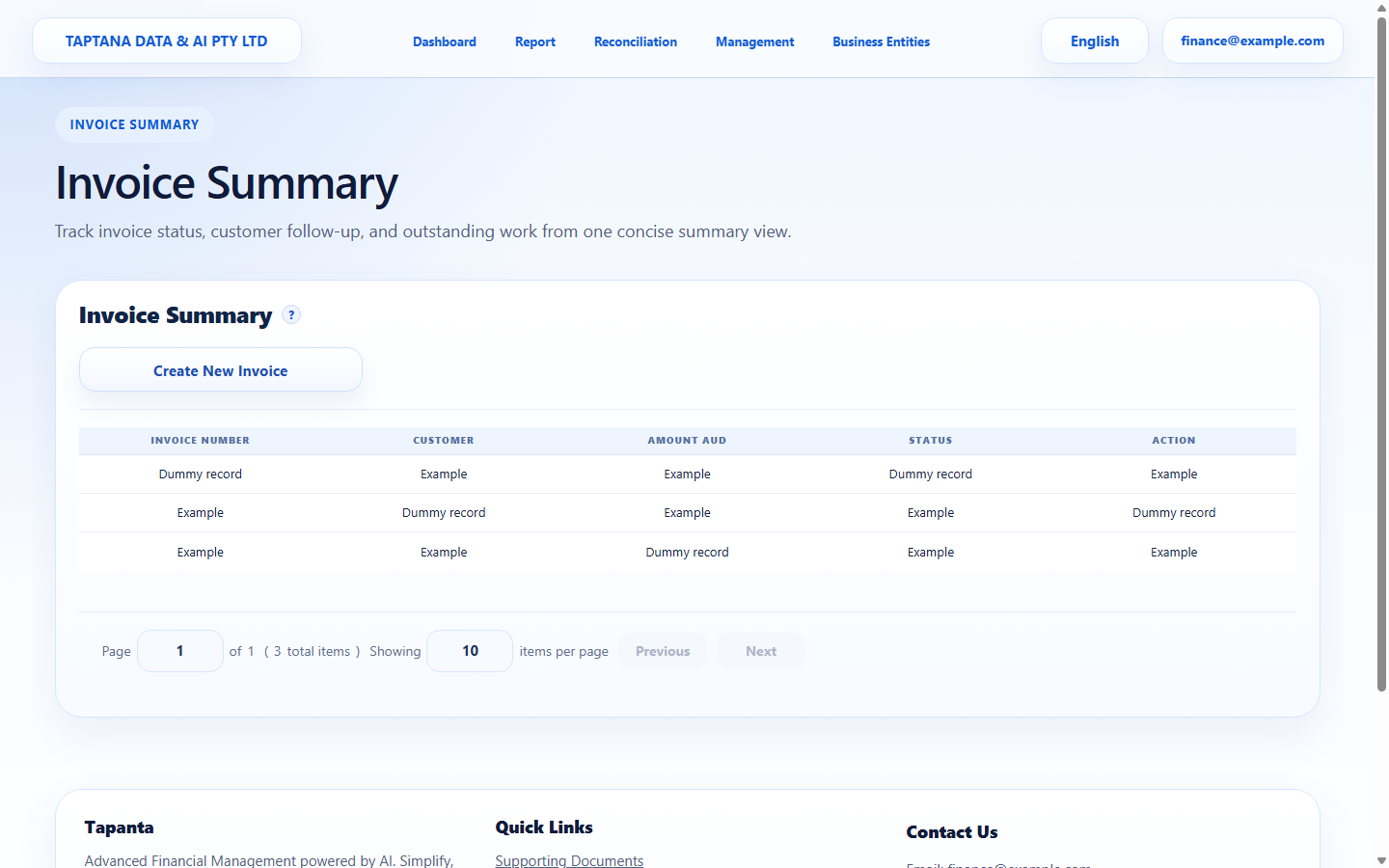
    Open Invoice Summary and select the draft invoice.

    Expected result Invoice detail opens.

    Open the draft screenshot Draft invoice row
    Click target: Draft invoice row
  2. 2

    Review document

    Check customer, due date, every line item, subtotal, GST/tax, total, and payment details.

    Expected result The invoice is ready for approval.

    Review document screenshot Invoice document
    Click target: Invoice document
  3. 3

    Approve invoice

    Click Approve only after review. Approval changes the invoice status and prepares it for sending.

    Expected result Invoice status becomes Approved.

    Approve invoice screenshot Approve
    Click target: Approve
  4. 4

    Send email

    Click Send only after confirming the customer email. The Help Centre walkthrough documents this action but does not send a real email.

    Expected result Sent invoices show the appropriate status.

    Send email screenshot Send
    Click target: Send
Final checks

Confirm before you finish.

  • Approved status is visible.
  • Email recipient is correct before sending.
  • No draft is sent accidentally.
If something goes wrong

Recover without losing control.

  • If approved too early, correct the invoice through the available invoice workflow.
  • If email is wrong, update customer details before sending.
Related scenarios