Level 2
Edit or remove a user's access
Update a user's permissions when their responsibilities change, or remove access when they should no longer use the company.
- Who can do this
- Company owner
- Last verified
- 2026-06-06
- Steps
- 4
- Product area
- Company
Prepare these items.
- Know the user's new role.
- Check whether the user still needs payroll or finance access.
Follow the workflow.
-
1
Open the access table
Open Company settings and choose Access Control on the company card.
Expected result Existing users are listed.
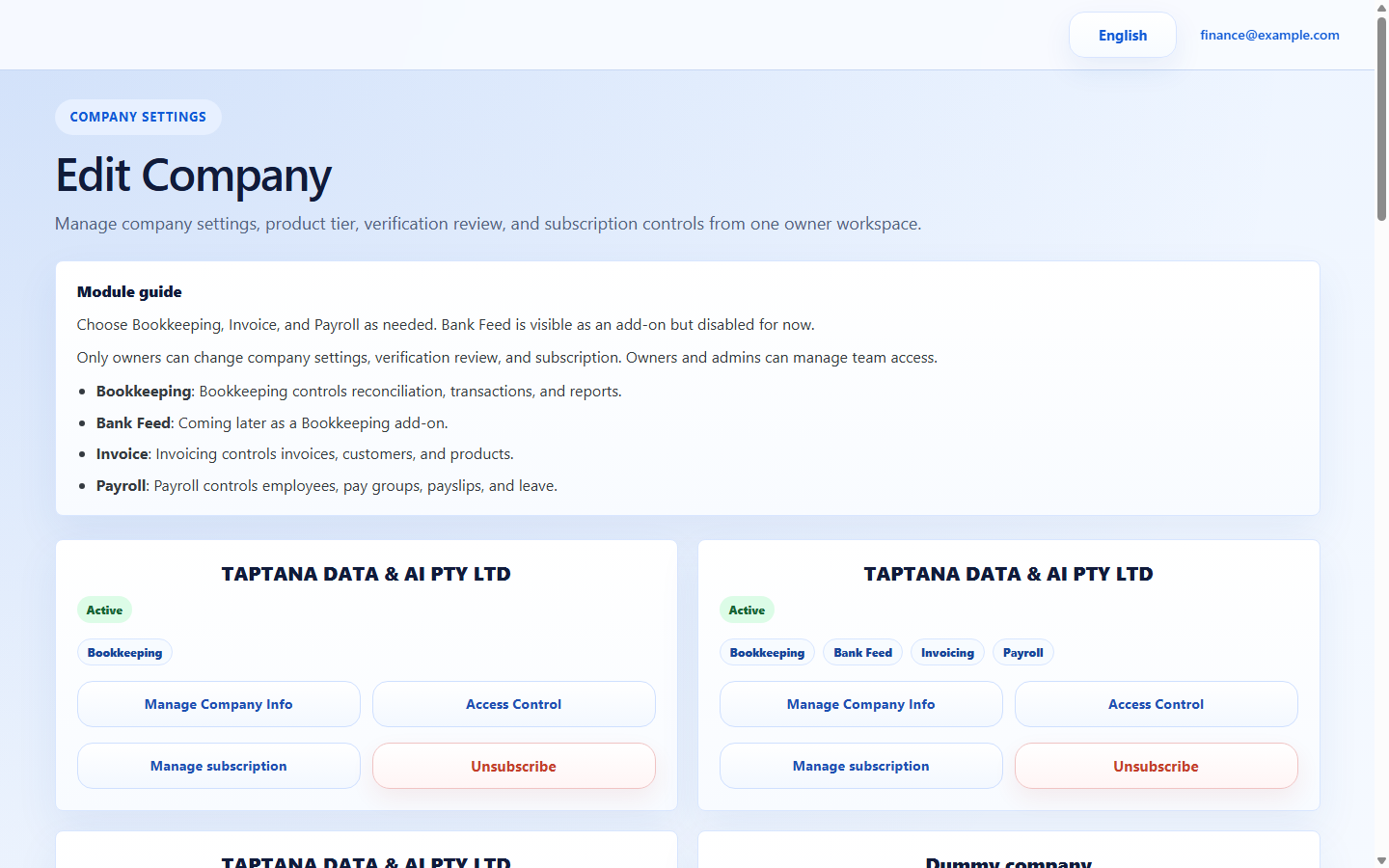 Access Control
Click target: Access Control -
2
Edit permissions
Choose the user's edit action, update role/module access, and save. Reduce access before adding new access if the role is uncertain.
Expected result The user's summary reflects the new access.
Edit permission row
Click target: Edit permission row -
3
Remove access
Use Delete only when the user should no longer access the company. Confirm the action before saving.
Expected result The user row is removed or marked inactive.
Delete user
Click target: Delete user -
4
Verify by review
Reload Access Control and confirm the old permission set is no longer visible.
Expected result Only current users remain.
User list
Click target: User list
Confirm before you finish.
- Departed users no longer appear as active.
- Changed users have exactly the intended module access.
Recover without losing control.
- If Delete is unavailable, set access to no access/read-only and contact support.
- If the wrong user was edited, restore their old permissions immediately.