Try Demo Login
Level 2

Invite a user and assign access

Invite users with the right module-level access, then verify exactly what they can read or edit before they start work.

Who can do this
Company owner
Last verified
2026-06-06
Steps
4
Product area
Company
Before you start

Prepare these items.

  • The company exists.
  • The user's email address is confirmed.
  • Product modules are already selected.
Important details

Understand the fields before changing them.

Permission levels

  • No access hides the module and should be the default for users who do not need that work area.
  • Read access is for review only: reports, history, and approved records can be viewed where the module allows it, but operational edits should stay blocked.
  • Edit access allows create, update, delete, approve, upload, or submit actions where the underlying page supports them. Use it only for users accountable for that workflow.
Module meaning

  • Bookkeeping covers dashboard, reconciliation, transactions, chart of accounts, bank feed visibility, and reports according to the specific bookkeeping access columns.
  • Invoicing covers customers, products, invoices, approval, email/send actions, and payment-status follow-up.
  • Payroll is sensitive: pay groups, employees, leave management, payslips, and STP should be granted separately and reviewed before giving broad edit access.
  • Bank Feed is currently coming soon. Do not treat visible Bank Feed controls as a production connection path until release notes say it is ready.

Payroll relationship access

  • A payroll employee can see their own employee/self-service surfaces when their app email matches the employee email.
  • A manager can act only on employees in their reporting chain for scoped leave workflows.
  • Manager relationship access does not automatically give access to other employees' payslips.
Steps

Follow the workflow.

  1. 1

    Open the correct company card

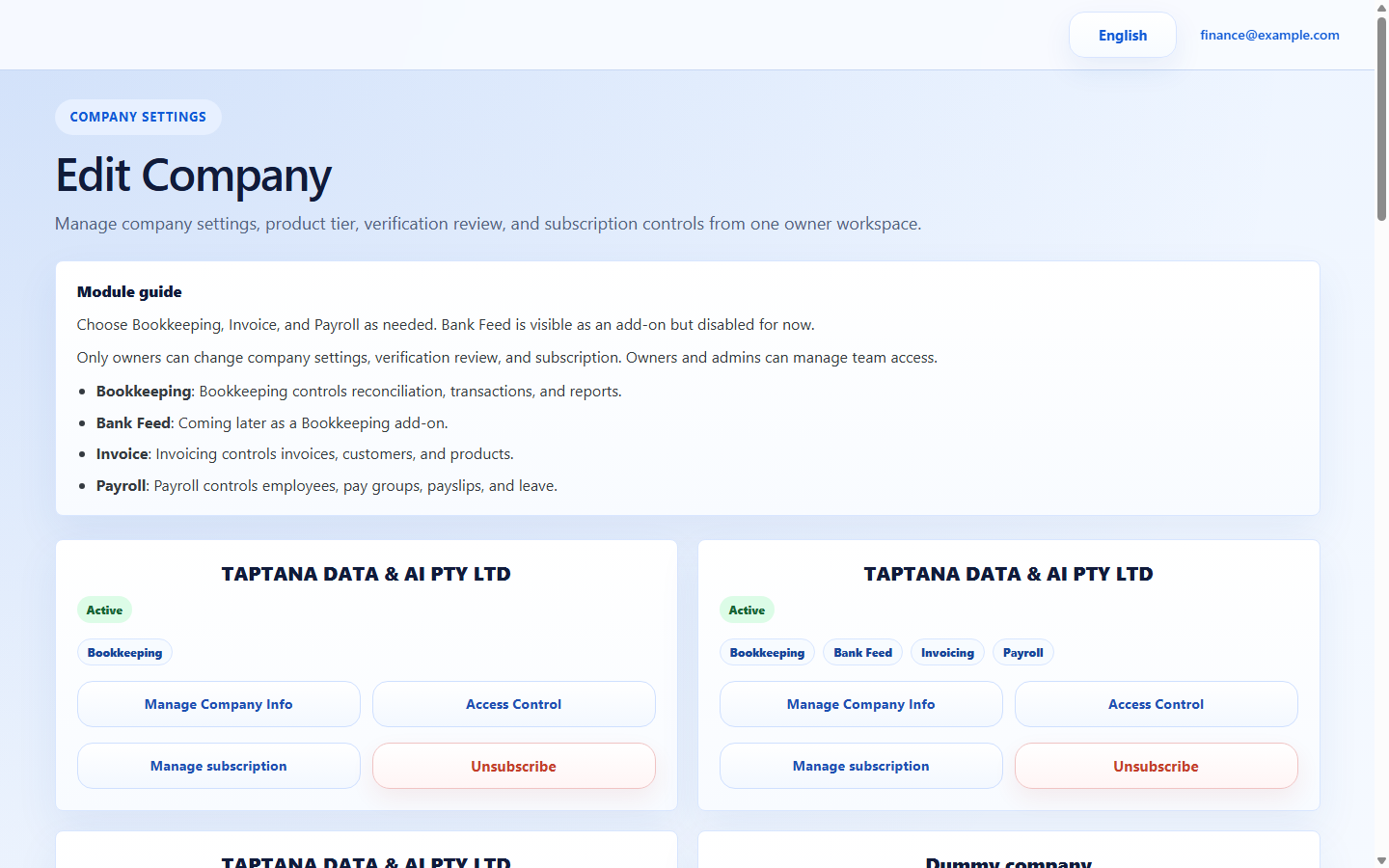
    Use Company settings, find the exact company card, and choose Access Control. Check the company name before editing because user access is company-specific.

    • Do not add users from a duplicate/dummy company card.
    • Only owners should manage access.

    Expected result The access table opens for the intended company only.

    Open the correct company card screenshot Access Control
    Click target: Access Control
  2. 2

    Add the user email

    Choose Add User and enter the user's login email exactly. The email is the identity link used by app login and employee self-service matching.

    • Avoid personal aliases unless that is the email the user will use to log in.
    • For payroll self-service, match the employee email record.

    Expected result A new user row is ready for role and module permissions.

    Add the user email screenshot Add User
    Click target: Add User
  3. 3

    Choose role and module permissions

    Set each module to no access, read, or edit. Grant edit only where the user is responsible for data changes, approvals, uploads, or submissions.

    • Bookkeeping edit can affect reconciliation and reports.
    • Payroll edit can affect payslips, leave, and STP readiness.
    • Read-only is the safer default for reviewers.

    Expected result The permission row shows only the access the user needs.

    Choose role and module permissions screenshot Permission grid
    Click target: Permission grid
  4. 4

    Save and review the row

    Save the row, wait for the table to reload, then read the full permission summary back before telling the user access is ready.

    • If a permission did not save, do not ask the user to test login yet.
    • Reopen the table if you changed payroll access.

    Expected result The user appears once with the expected role and module settings.

    Save and review the row screenshot Save access
    Click target: Save access
Final checks

Confirm before you finish.

  • The user appears once.
  • Read-only users cannot edit operational data.
  • Owner/admin access is assigned only deliberately.
If something goes wrong

Recover without losing control.

  • If a module is missing, confirm that module is enabled for the company.
  • If the user still cannot access a page, review both role and module permission.
Related scenarios